To add hosts to your network as a Niki Live agent, you have two options: add them manually using their user ID from the agent menu, or share a recruitment link so they can register directly through your agency.
Agent menu · Add host · Recruitment link · Hosts
In this guide
Before adding hosts
To add a host, you need to have an active account as a Niki Live agent. It is also important that the interested person already has an account in the app and can share their user ID with you.
- Active agent account: you need access to the agency menu.
- Host ID: the person must share their Niki Live user ID with you.
- Verified account: the host must have their account created and verified.
- No linked agency: confirmation applies to hosts who do not already belong to another agency.
- App installed: the entire process is completed from Niki Live.
Add host by ID
Use this method when you already know the person who wants to become a host. Ask them to download Niki Live, create an account, complete the verification process, and share their user ID with you. You can then find them through your agent options and send them the request.
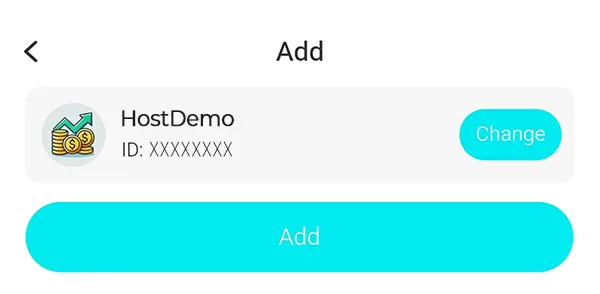
- Open the agency menu
Open Niki Live, go to your profile, and tap Agency. - Find Add host
Inside the management section, open Add host. - Enter the user ID
Type the ID shared by the interested person. - Verify the profile
Confirm that the name, photo, and ID match the correct host. - Press Add
Send the request to link that host to your agency.
Important: after sending the request, the host must accept it from their official messages inside Niki Live.
Recruitment link
From the agency menu, go to Host recruitment, choose a template, and share your link so new hosts can register directly.
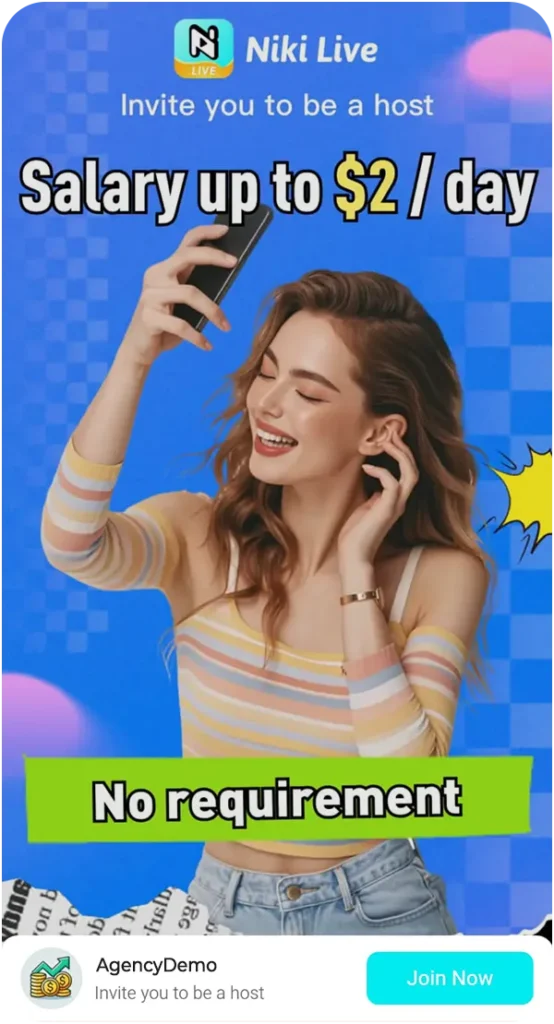
- Ideal for social media: share the link on Facebook, Instagram, WhatsApp, or Telegram.
- Useful for websites: you can create a button such as I want to become a host and link it to your invitation.
- More direct registration: the person enters through your link and gets linked to your agency.
- More scalable: you do not need to ask for each ID one by one if you are promoting your agency.
Host confirmation
When you add a host by ID, the app sends a linking request. The host must go to their official messages inside Niki Live and accept the invitation to be added to your agency.
- The request arrives inside the app.
- The host can accept or decline.
- If accepted, the host is linked to your agency.
- If they already belong to another agency, you may not be able to add them directly.
- You can review the status in the registration history.
Not a Niki Live agent yet?
To add hosts, you need to be an agent to access the agent menu within the app. If you don’t already have an active account, first review how to register as an agent on Niki Live and then return to this guide.
Frequently asked questions
-
What does anchor mean in Niki Live?
In the app, “anchor” refers to the host or presenter who live streams. That is why, when you see Add host, it means adding a host to your agency.
-
Where do I find the Add host option?
It is inside the Agency menu, in the host or anchor management section.
-
Can I add a host with only their ID?
Yes. You can search for them with their user ID, confirm it is the correct profile, and send the request from Add.
-
Does the host need to accept the invitation?
Yes. After you send the request, the host must check their official messages in Niki Live and accept the link request.
-
What happens if the host already has an agency?
If the host is already linked to another agency, you may not be able to add them directly.
-
Which method is better for getting more hosts?
If you already know the person, use the ID method. If you want to promote your agency on social media or a website, use the recruitment link.